LabLinks Dashboard Documentation
The web dashboard at lab-links.com, for merchants managing lab reports, products, a public portal, embeddable widgets, and QR codes from one place, with or without the Shopify app. For the Shopify app itself, see the Shopify app documentation.
1.Overview
Sign up at lab-links.com to create your organization. The onboarding wizard collects your organization details and industry, your business information, and your plan selection.
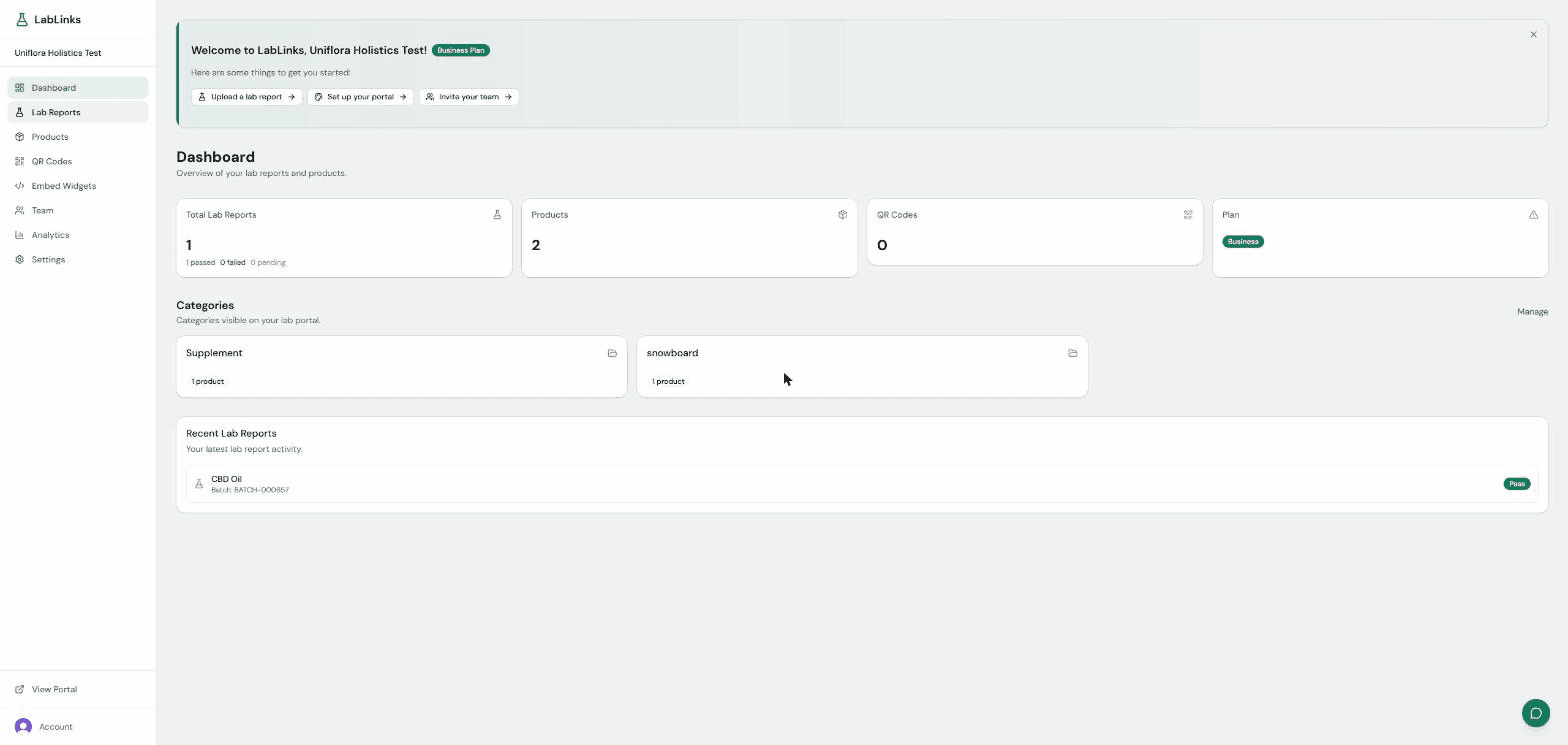
The dashboard home shows your total lab reports with a pass/fail/pending breakdown, your products, QR codes, plan, and portal categories, plus a list of recent lab reports.
2.Lab reports
The lab reports list supports search across product, lab name, batch, lot, and status, with sortable columns. CSV import is available on Pro and above.
Use the starter template for a clean CSV header row before you upload:
Download LabLinks CSV template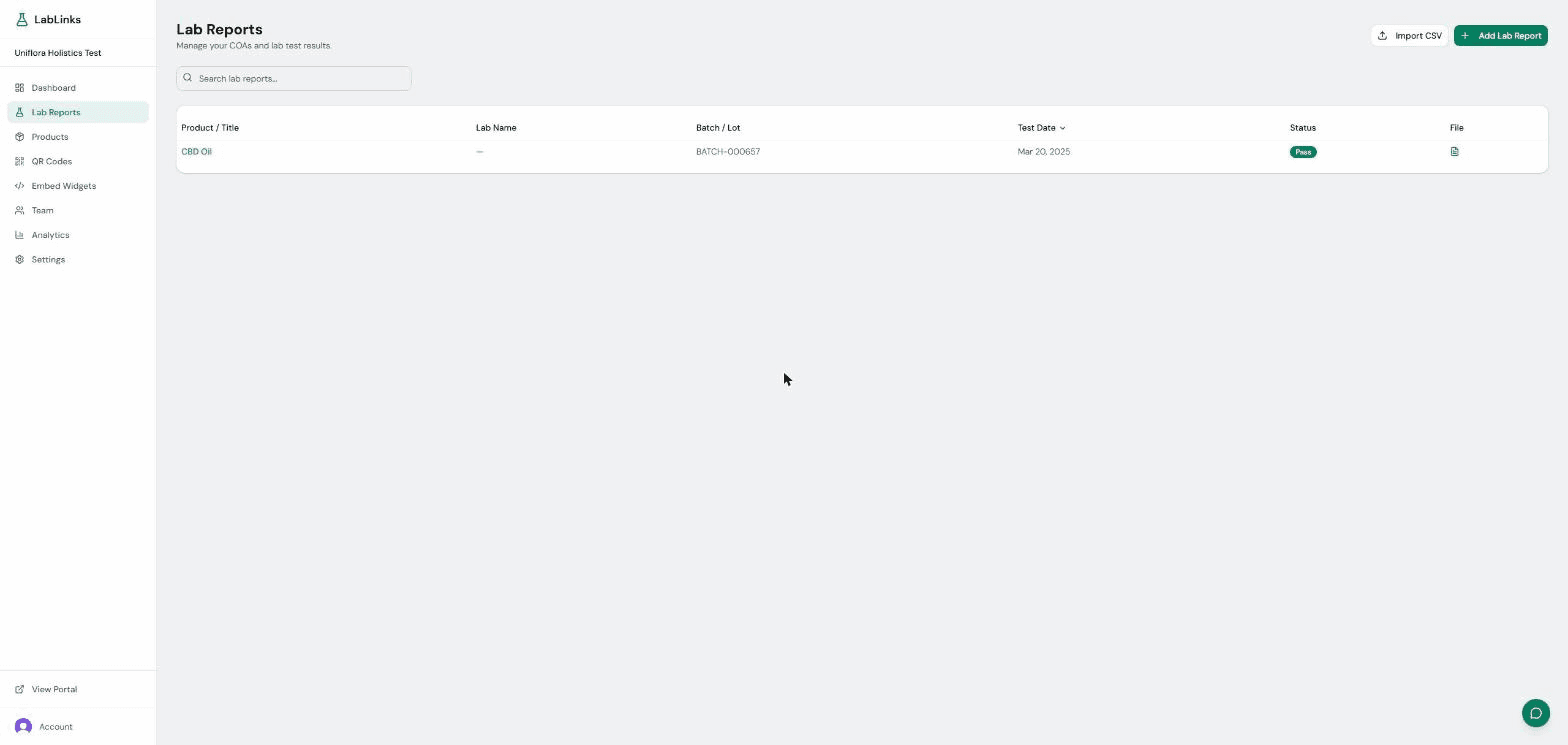
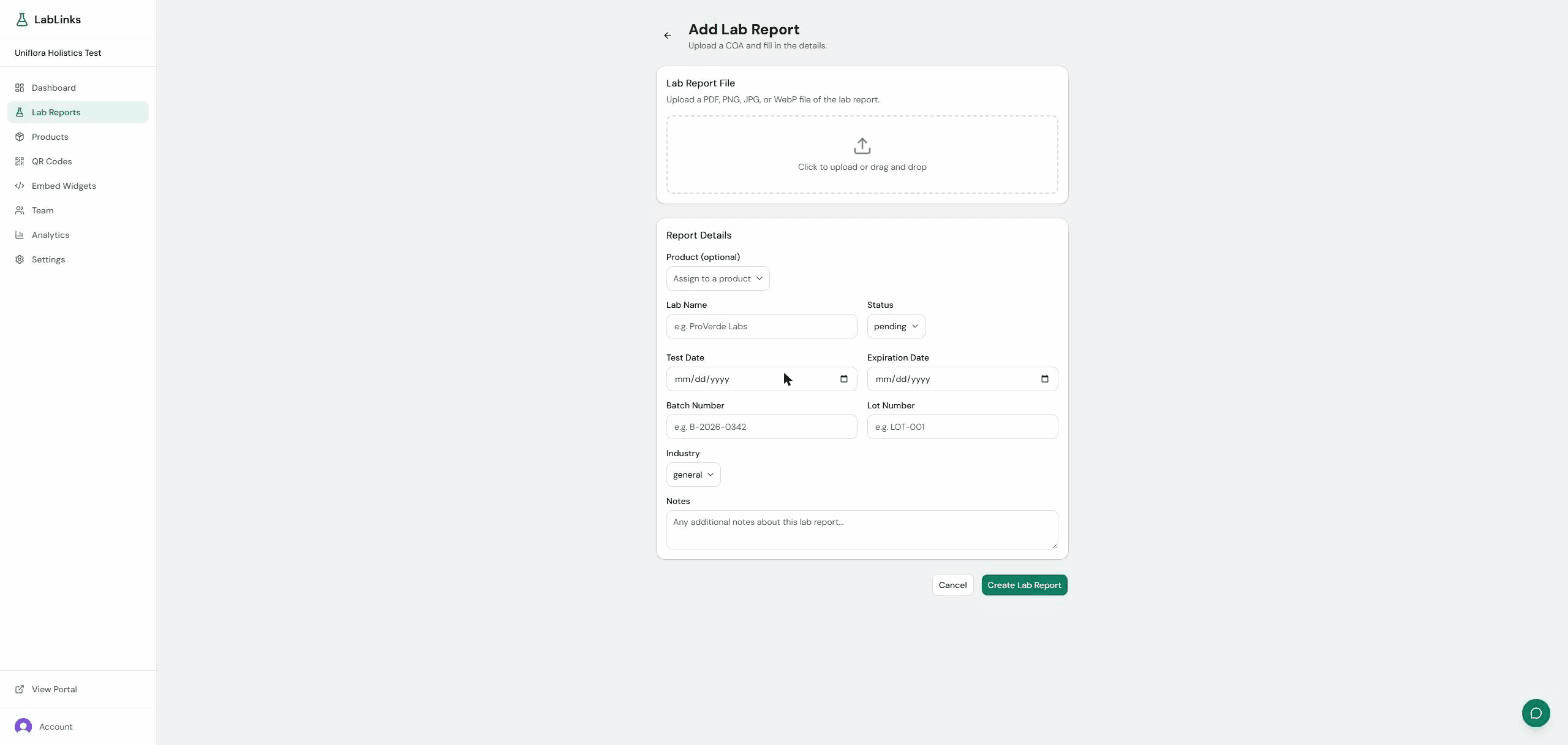
Click Add Lab Report to upload a new report. Upload the file as a PDF, PNG, JPG, or WebP, optionally assign it to a product, and fill in the details: Lab Name, Status, Test Date, Expiration Date, Batch Number, Lot Number, Notes, and Industry.
3.Products & categories
Add products manually, or import them from a connected Shopify store. Each product can hold its own lab reports.
Organize products with categories. Categories appear as browseable sections on your public portal, and each category can be shown or hidden per portal.
4.The public portal
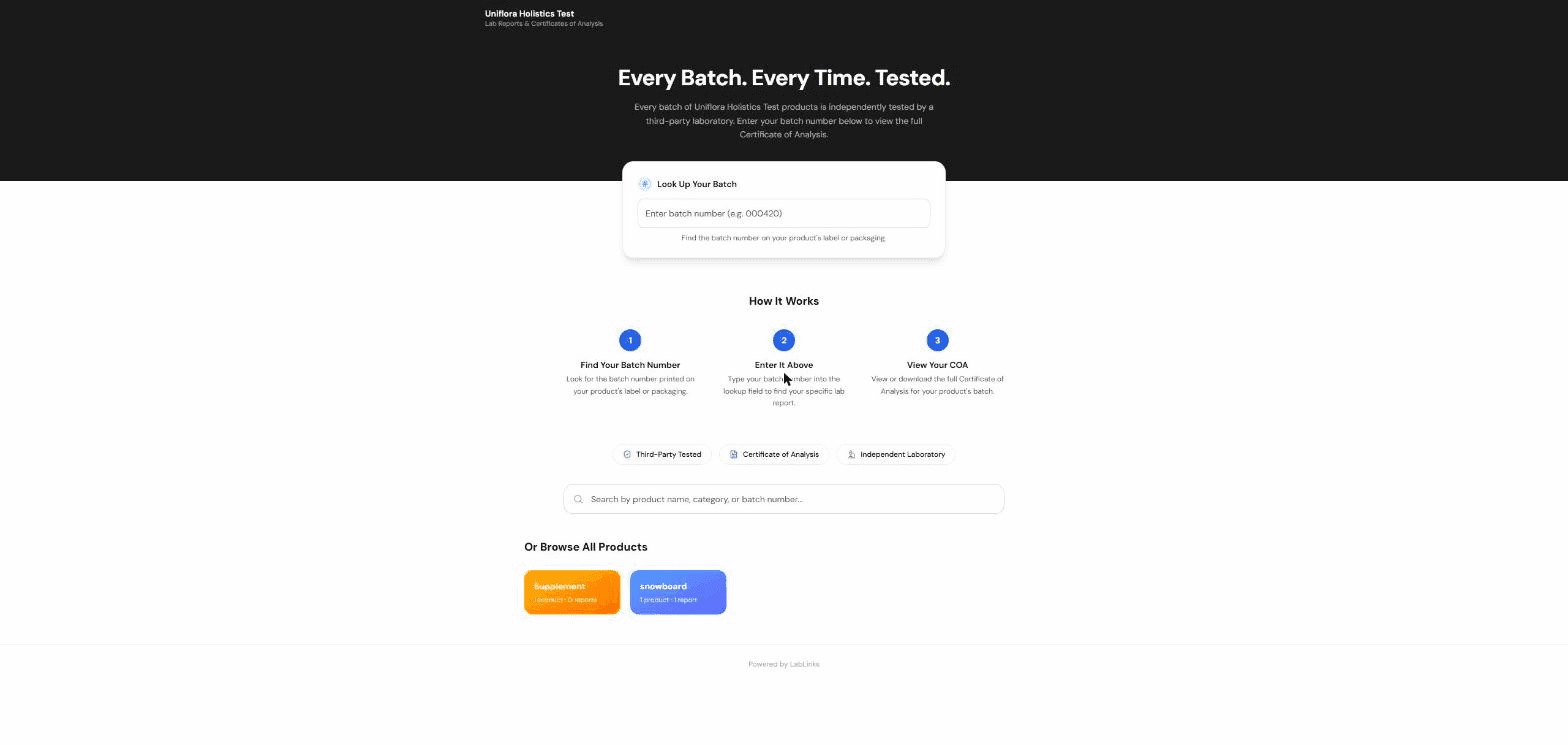
Every organization gets a branded public portal at lab-links.com/portal/your-slug. Batch lookup sits front and center, with product search and category browsing below. Customize the portal title, description, and branding from Settings.
On the Business plan, you can serve the portal on your own custom domain. Set up the CNAME in Settings.
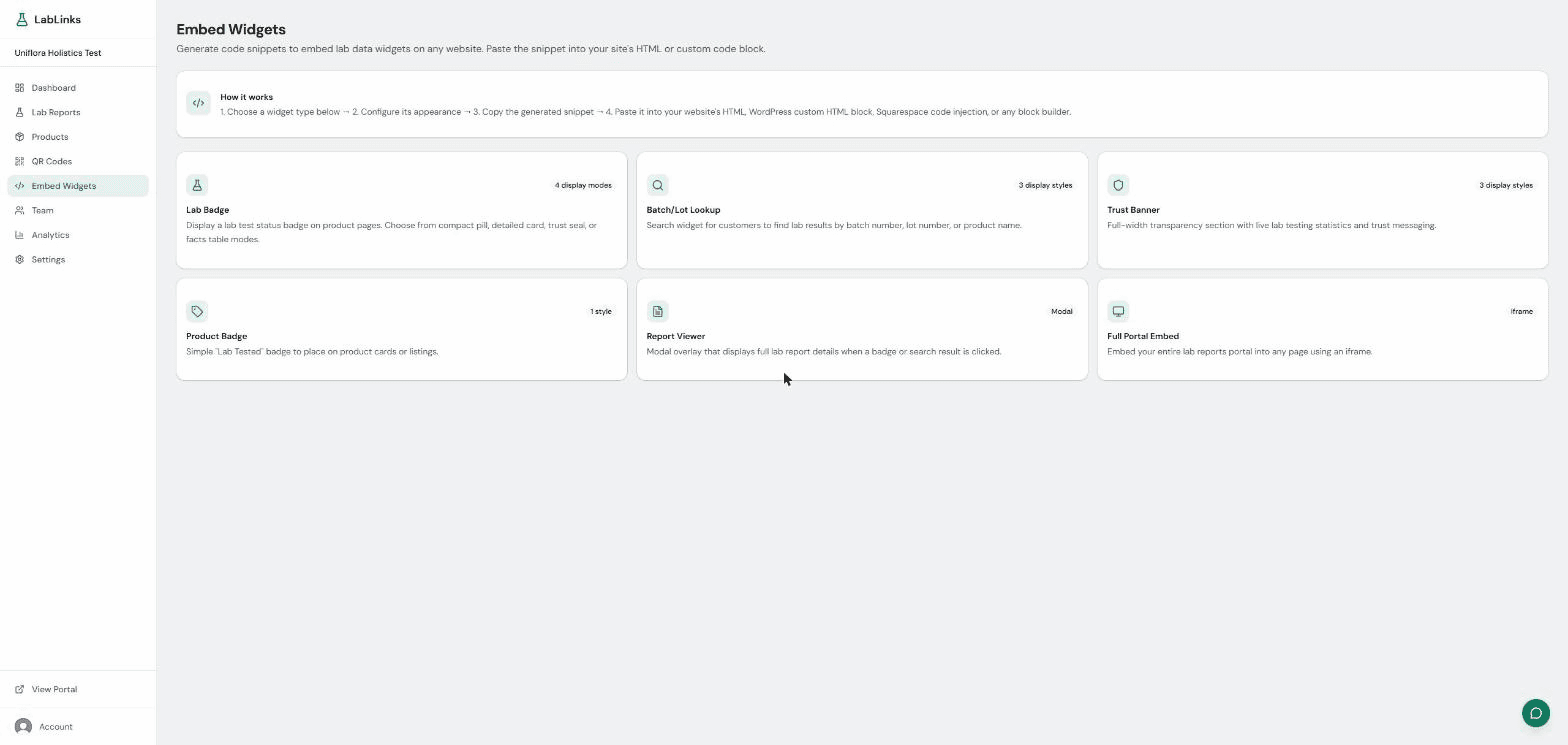
5.Embed widgets
Six embeddable widgets work on any website, whether plain HTML, WordPress, Squarespace, or any page builder that accepts an HTML snippet:
- Lab Badge, with four display modes: compact pill, detailed card, trust seal, and facts table
- Batch/Lot Lookup, with three styles
- Trust Banner, with three styles and live stats
- Product Badge
- Report Viewer, which opens a report in a modal
- Full Portal, which embeds your portal as an iframe
Configure each widget's colors and text, then copy the generated snippet into your site.
6.QR codes
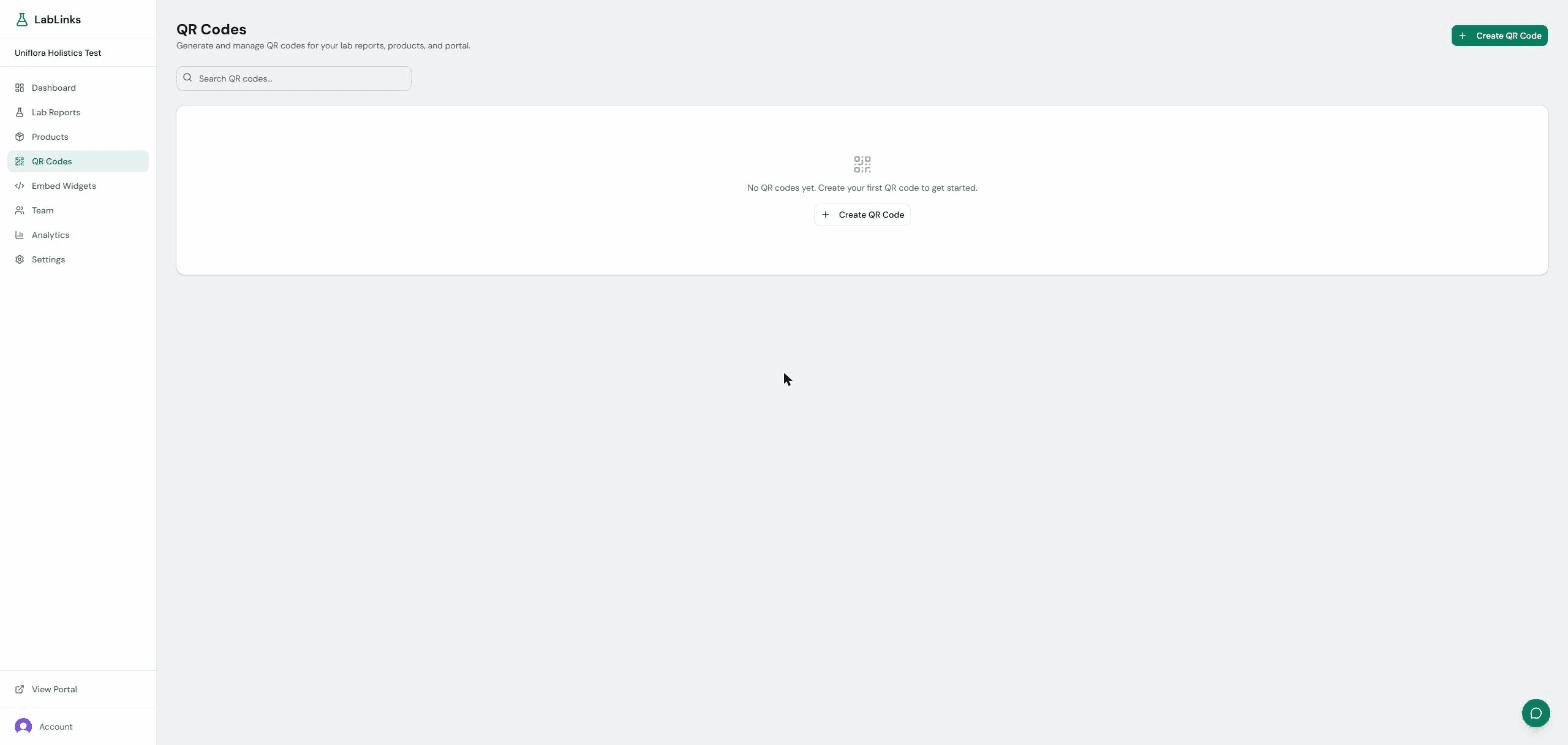
QR code generation is available on the Business plan.
Create QR codes that point at a lab report, a product, or your portal. Customize the colors and add your logo, then download the code as PNG, SVG, or PDF. Scan counts are tracked per code.
7.Analytics
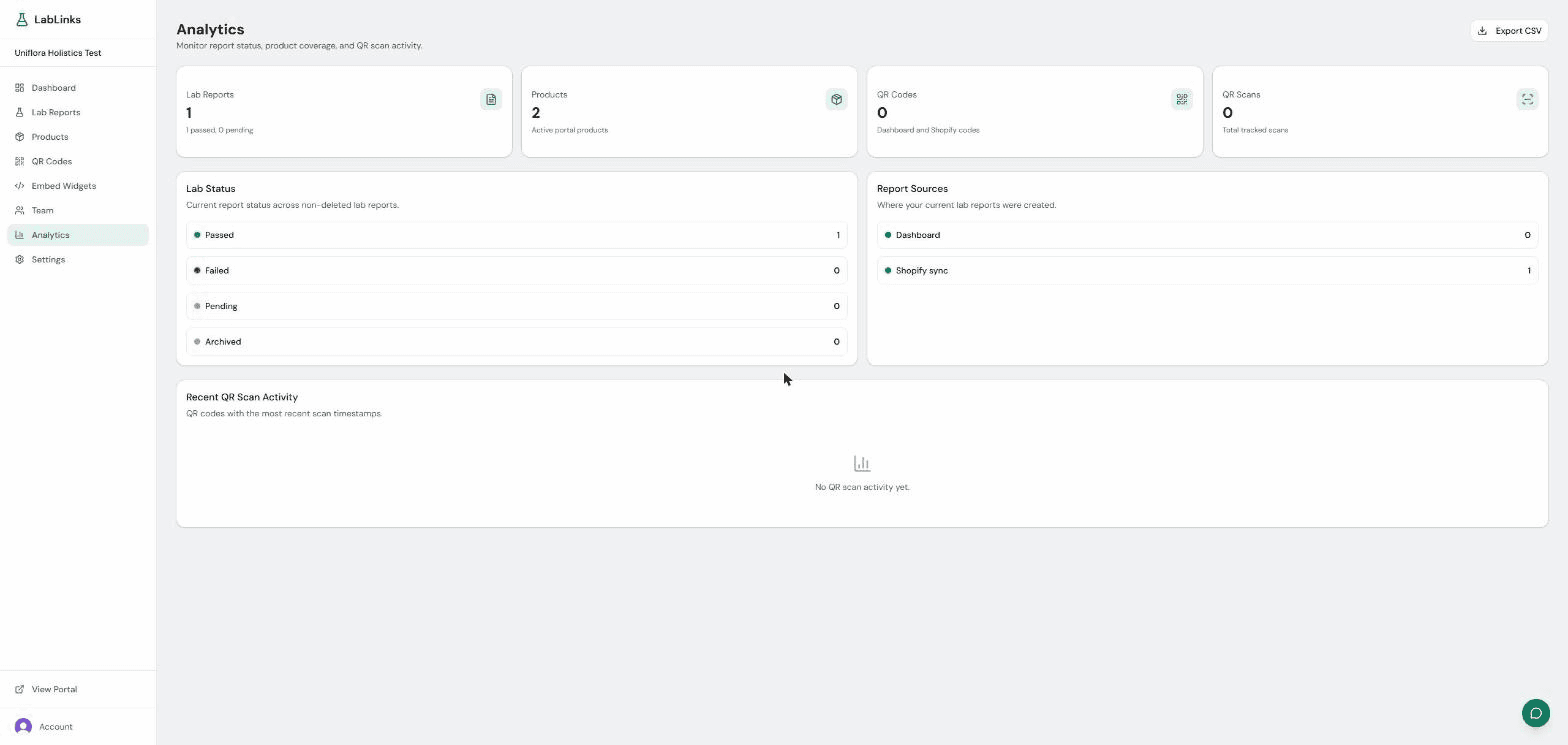
Analytics is available on the Business plan.
Analytics shows your lab report status breakdown, report sources (added in the dashboard vs synced from Shopify), and QR scan activity. Export the data as CSV.
8.Settings
Settings is organized into tabs:
- General, for organization name, portal slug and URL, primary industry, and timezone
- Billing, for your plan and invoices, handled through Stripe
- Custom Fields, to create per-industry fields of type text, number, percentage, or pass/fail, with optional units
- Branding, for logo, colors, and the attribution toggle on paid plans
- Display, for portal title, description, and visibility
- Integrations, to connect a Shopify store and view sync status
- Custom Portal Domain, a Business plan feature with CNAME setup instructions for serving your portal on your own domain
9.Team
Team members are available on the Business plan.
Invite up to 5 team members by email and assign each a role. Pending invitations can be managed, resent or revoked, from the Team page.
10.Shopify connection
Connecting the LabLinks Shopify app syncs products and lab reports both ways between your store and the dashboard. The Integrations tab in Settings shows the connection status and the last sync.
For installing the app and everything storefront-side, see the LabLinks for Shopify app documentation.
Need help?
Email support@lab-links.com and we'll get back to you, or book a demo for a guided walkthrough.