How to Add COAs to Shopify Product Pages
Last updated June 12, 2026
If you sell hemp, CBD, or supplements, your customers expect to see a certificate of analysis before they buy, not after they email you to ask for one. This guide walks through the common ways merchants attach COAs to Shopify products, where each approach breaks down, and what a workflow that holds up at scale actually looks like.
Why Product-Level Lab Report Access Matters
A COA on your homepage is a marketing claim. A COA on the product page is an answer. Shoppers comparing two CBD tinctures or two protein powders are not asking whether your brand tests in general. They are asking whether the item in their cart was tested, what the results were, and whether the report matches the batch they will receive.
The same is true upstream. Wholesale buyers, marketplaces, and payment processors routinely ask for batch-specific lab documentation, and “I’ll dig it up” is a slow answer when the report could simply be one click from the listing. Putting the report where the buying decision happens shortens that conversation and signals that you have nothing to hide. For products like hemp and supplements where third-party testing is the trust currency, easy access to the lab report is part of the product page, not an afterthought.
Common Approaches and Where They Break
Most stores start with one of four patterns, and each one works fine, until the catalog or the batch count grows.
PDF links in product descriptions. Pasting a file link into the description is quick, but every new batch means editing the product, the link opens a raw PDF in a new tab (a rough experience on mobile), and old links quietly keep pointing at expired reports. With variants, one link per description can't represent different batches per size or flavor.
Google Drive or Dropbox folders. A shared folder keeps everything in one place for you, but it asks the customer to do the work: open a folder of dozens of files, guess which filename matches their product, and hope the sharing permissions haven't changed. Renaming or reorganizing files breaks every link you've ever shared.
A static “Lab Results” page. A single page listing every PDF is better than a folder, but it becomes a wall of links fast. There is no search, no connection to the product page the shopper was just on, and the page needs manual editing every time a batch changes.
Custom theme code. A developer can wire COAs into your theme with metafields and custom Liquid, and the result can look great. The cost shows up later: the integration is fragile, theme updates can wipe or break it, and adding a report now requires whoever understands the code instead of whoever runs the store.
What a Better Workflow Includes
Whatever tool you use, a COA workflow that scales has a few properties worth checking for:
- Reports linked to products, not pages. The report should attach to the product record (and the specific batch), so the right COA appears wherever that product is shown, with no copy-pasting links.
- Batch and lot details on the report. Batch number, lot number, test date, expiration date, lab name, and a Pass/Fail/Pending status, so a shopper can match the report to the package in their hand.
- An on-page PDF viewer. The report should open in place, on mobile, without forcing a download or a trip to a third-party file host.
- A searchable portal. Customers who arrive with a batch number, from packaging or an old order, need a place to search by product, batch, or lot.
- A QR code path from packaging. The label on the physical product should be able to point at the same report system, so the answer is one scan away months after purchase.
How LabLinks Handles It
LabLinks is a Shopify app built around exactly that workflow. You upload each COA as a PDF or image (PNG, JPEG, and WebP also work, up to 15 MB), add the details (lab name, test date, expiration date, batch and lot numbers, status, and any custom fields from your industry template), and link the report to a product from your Shopify catalog. You can scope a report to a specific variant or apply it to all variants, and a product can hold multiple batch reports with one marked as the default.
The storefront side needs no code. In the Shopify theme editor, add the Lab Test Product Badge block to your product page template, the same way you add any theme section. Colors and text are customizable to match your theme.
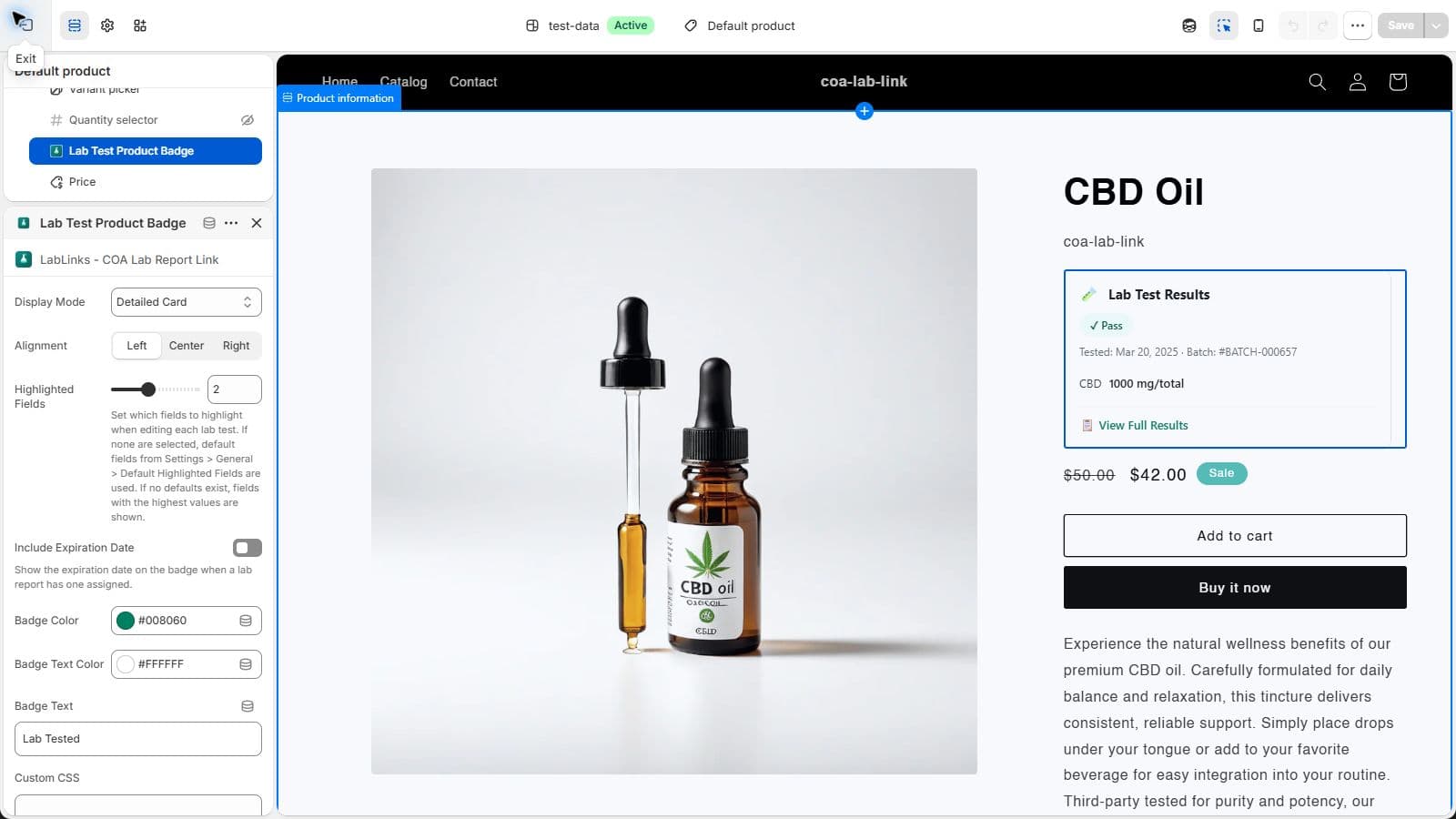
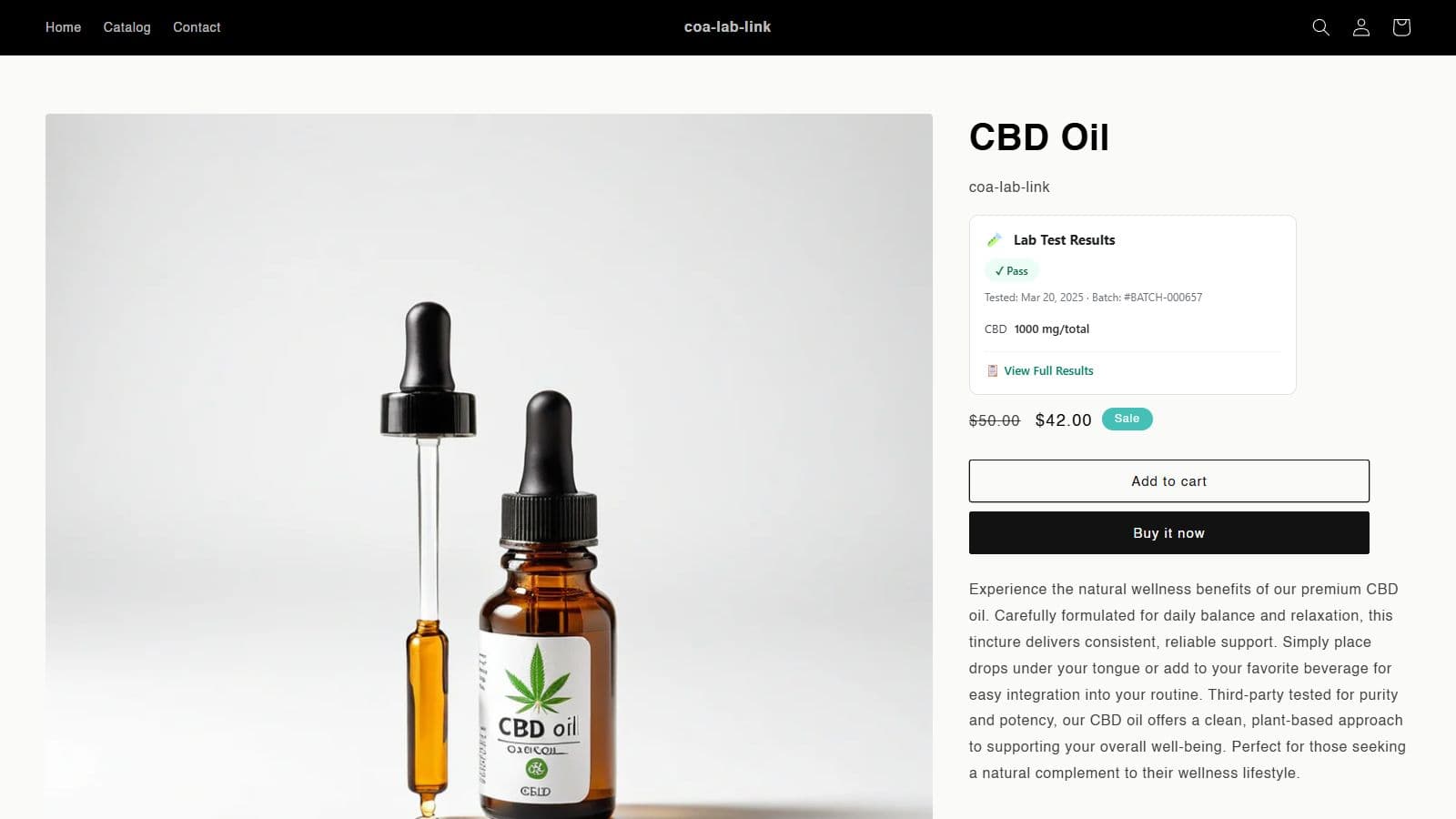
Once the block is enabled, products with a linked report show a lab-tested badge. Clicking it opens a popup with the report details and an embedded PDF viewer, so the customer reads the COA without leaving the product page. Because the report is linked to the product record, publishing a new batch in the LabLinks dashboard updates the storefront automatically. Nobody edits a description or a static page.
For customers who start from a batch number instead of a product page, every store also gets a searchable portal at /apps/lab-results on your own shop domain, where visitors can look up reports by product, batch, or lot. A batch lookup widget and trust banner are available as additional theme blocks, and QR codes on the Business plan connect packaging to the same reports.
A note for hemp and CBD merchants: LabLinks helps display your lab reports clearly and consistently. It does not determine what your labels or listings must include. This article is not legal advice; consult a qualified professional about the requirements that apply to your products and jurisdictions.